
Mastodon for Windows
Winston
A native Windows 11 client for Mastodon.
Live feeds, columns, a Catch up that finds what you missed, and a new post from anywhere with one shortcut. Built with WinUI 3 and .NET 10, so it looks and works like the rest of Windows 11.

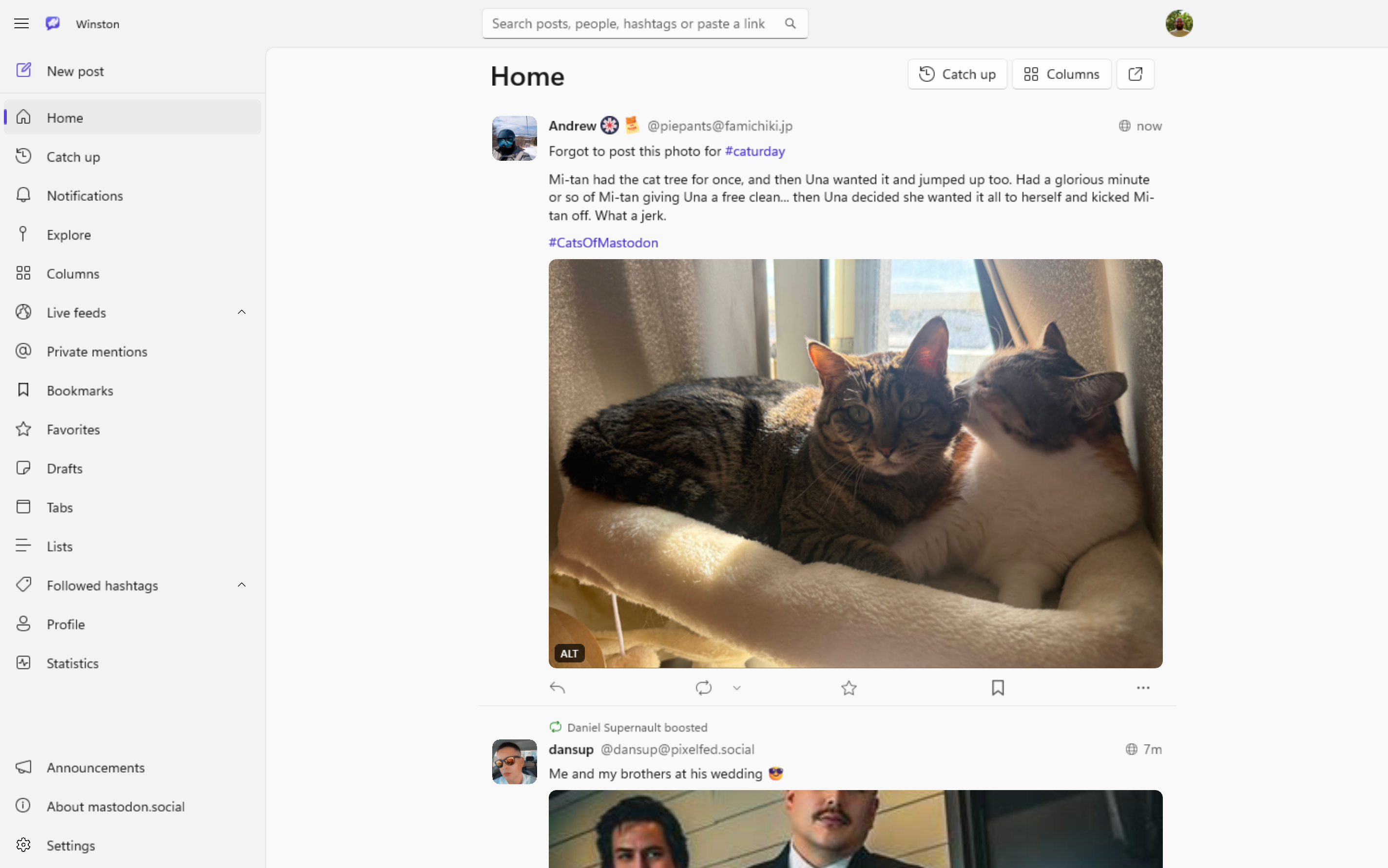
Everything Mastodon, made for Windows
Winston covers the whole of Mastodon, from your home feed to moderation, and adds a few things of its own.
-
Feeds that keep up
Home, Local, Remote and Federated feeds stream live. New posts arrive above you without moving what you're reading, and a pill counts down as you scroll up to them.
-
Catch up
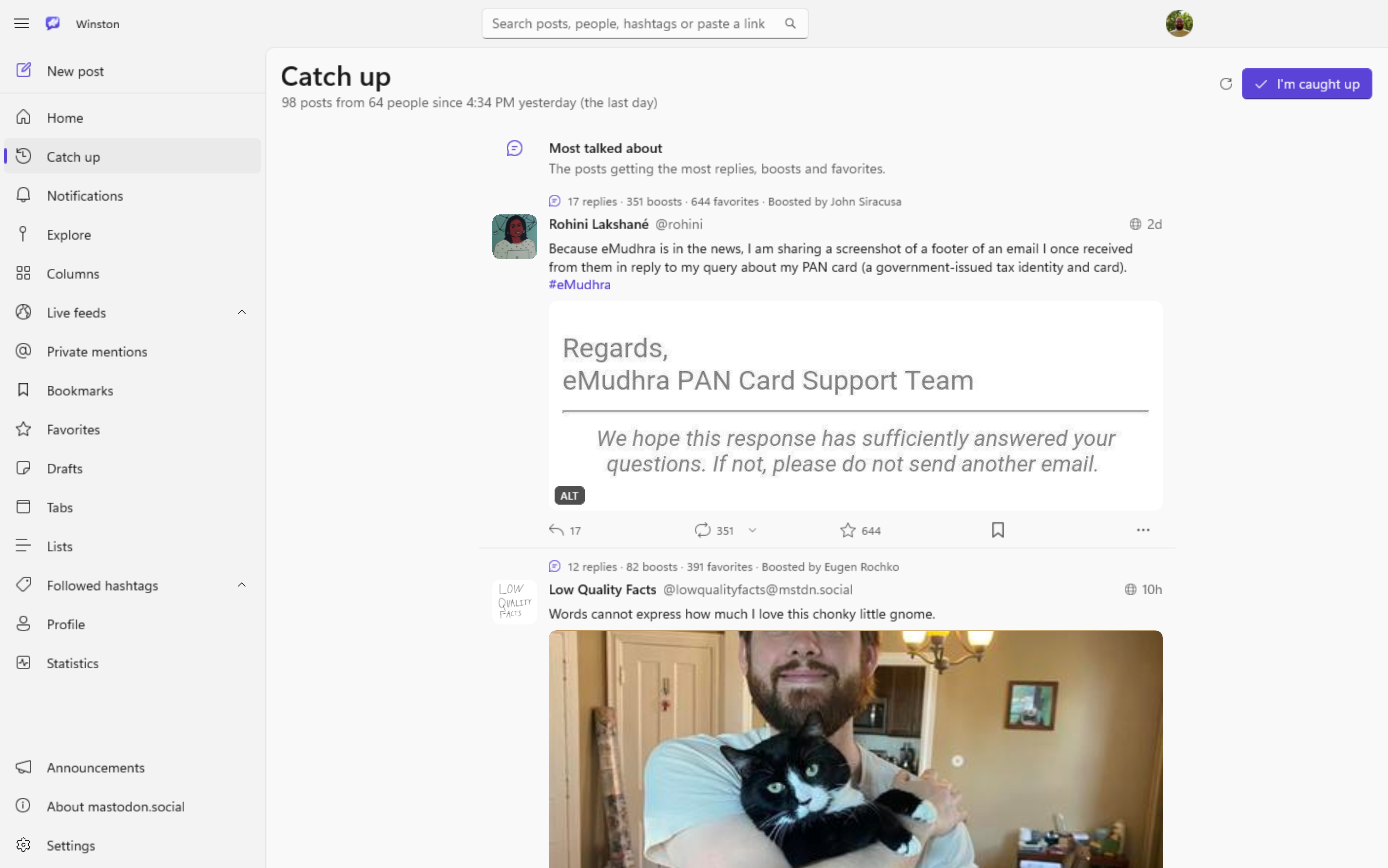
What you missed since you last looked, picked out on your PC: the most talked-about posts, boosts from several people folded into one card, replies and mentions, the busiest hashtags, and quiet voices who rarely post.
-
Columns and tabs
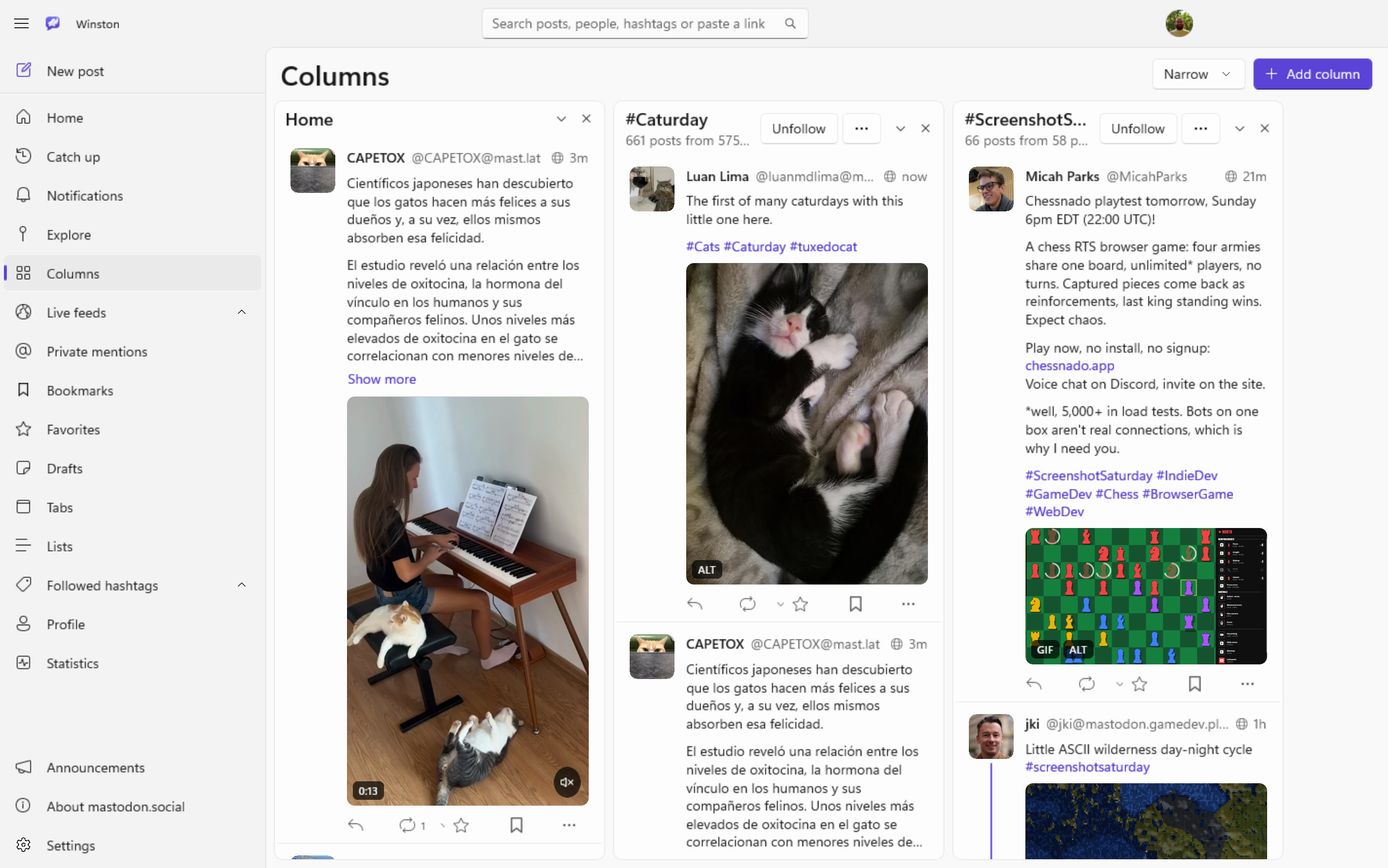
Put Home, Notifications, lists, hashtags, people, bookmarks and trends side by side. Drag to reorder, pick from three widths, and Winston remembers the layout.
-
Pop out any feed
Follow an event or a conversation in a small window that stays on top of your other apps while you work.
-
A new post from anywhere
Press Ctrl+Alt+Shift+M wherever you are and a new post opens over what you're doing. Winston can wait in the notification area so the shortcut always works.
-
Help with alt text
"Use text in the image" reads a screenshot's text with the text recognition built into Windows, on your PC and offline, and puts it in the description for you to edit.
-
Drafts that stay
Close compose without posting and Winston keeps what you wrote: content warning, poll, reply, and attachments with their descriptions.
-
Links beside your feed
Web links open in a panel next to your timeline, with a reader view that shows just the article in Winston's theme and text size.
-
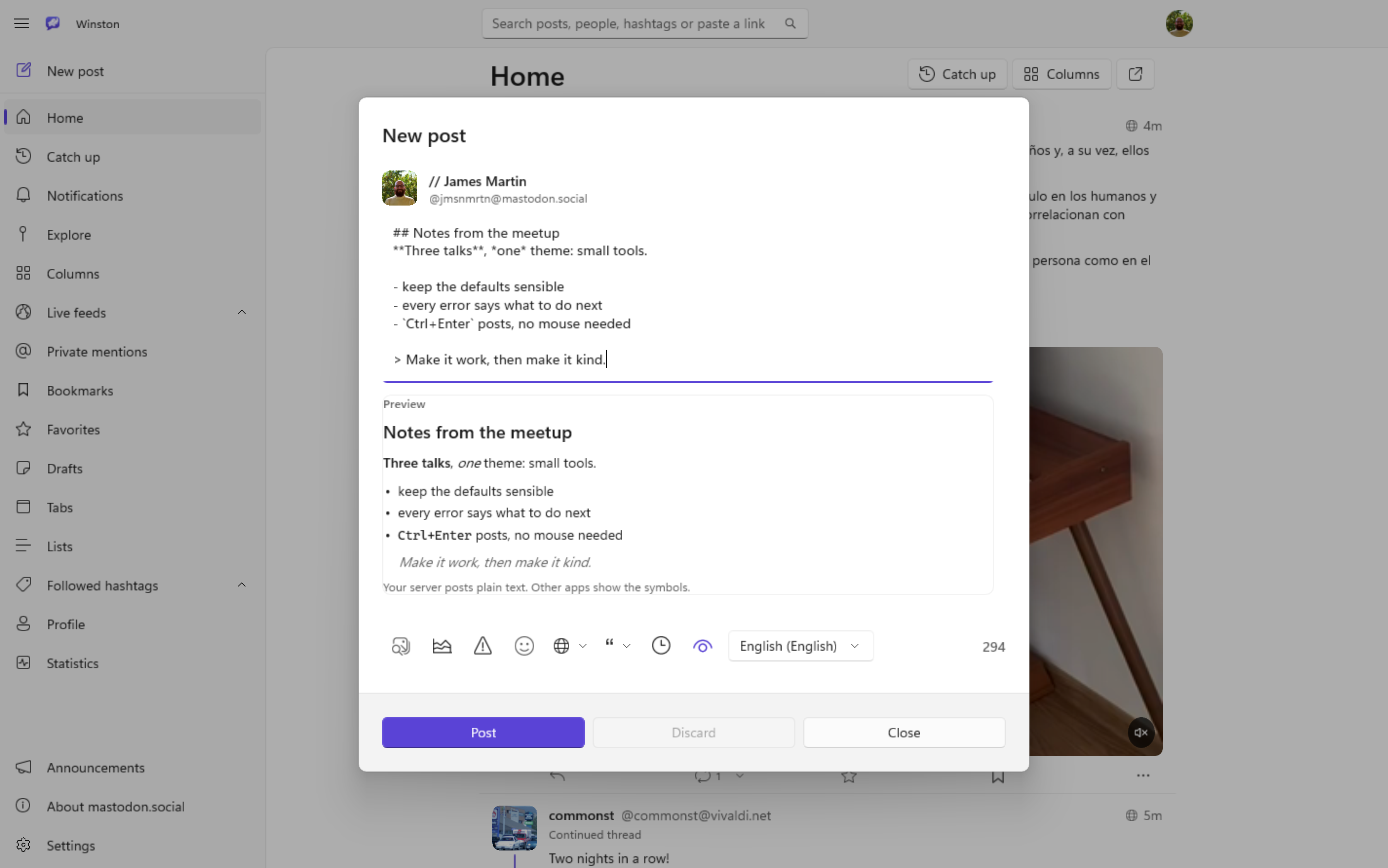
Markdown, shown as formatting
Bold, italics, code, lists, quotes and links typed as Markdown show as formatting. On servers that accept it, post in Markdown or HTML.
-
Quotes, polls and threads
Quote posts, polls you can vote in and refresh, edit history, translations, and threads colour-coded by depth.
-
Statistics
A weekly activity chart covering eight weeks of replies, mentions, quotes, boosts, favorites, posts and follows, plus your recent posts with their counts.
-
All your accounts
Sign in to as many accounts as you like, on any servers, and switch between them quickly. Staff get reports, approvals and federation tools too.
A closer look
Screenshots taken by Winston's automated tests, signed in to an account on mastodon.social.
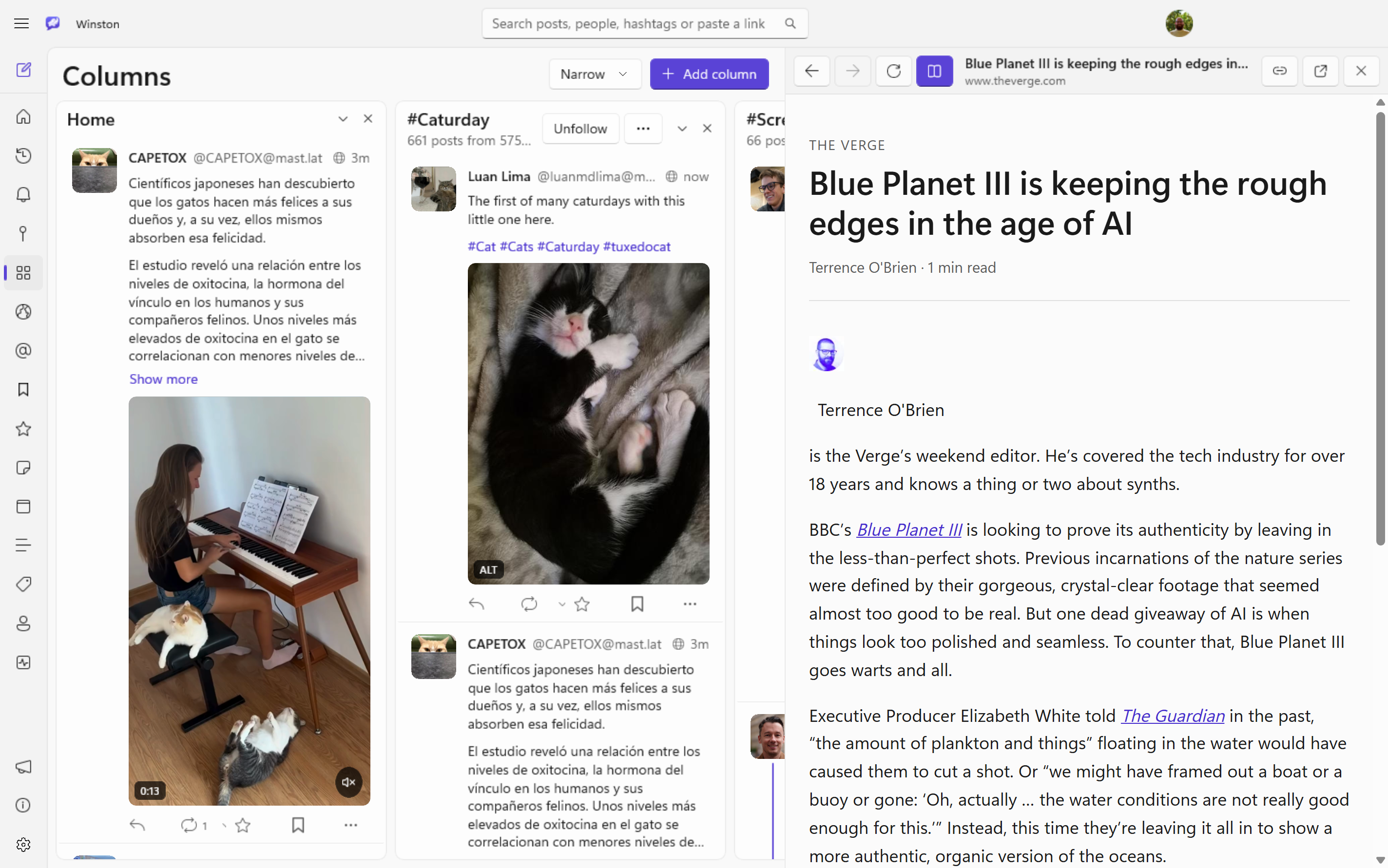
At home on Windows 11
Winston uses the current Fluent controls and the parts of Windows you already know.
- Mica and Acrylic backdrops
- Light and dark themes
- Windows' accent colour or your own
- Toast notifications
- The Windows share sheet
- An icon in the notification area
- Text recognition built into Windows
- Sign-ins protected by Windows (DPAPI)
- Sharp on every monitor (per-monitor DPI)
- Follows Windows' animation setting
- Keyboard shortcuts throughout
Between you and your server
Winston talks directly to the Mastodon servers you sign in to. There's no LittleFoundry account, no analytics and no tracking. Your settings, accounts and drafts stay on your PC, and sign-in tokens are encrypted by Windows for your user alone.
Get Winston
Updates install automatically.
Installing
- Get Winston from the Microsoft Store. The Store installs the right version for your PC and keeps it up to date.
- Open it from the Start menu.
- Sign in with your server. Enter your server's address and approve Winston in your browser. You can also paste an access token from your server's Development settings.
Requirements
- Windows
- Windows 10 version 1809 or later, or Windows 11
- Processor
- x64 or ARM64
- Account
- An account on a Mastodon server
- Price
- Free
Questions
How much does Winston cost?
Nothing. Winston is free.
How do I update Winston?
The Microsoft Store updates it for you. To check straight away, open Library in the Microsoft Store and choose Get updates.
Does it work with my server?
Winston works with any Mastodon server. Some features need a recent version: grouped notifications need Mastodon 4.3, quote posts 4.5 and collections 4.6. Posting in Markdown or HTML works on servers that accept it, such as glitch-soc, GoToSocial and Akkoma.
Can I use more than one account?
Yes. Sign in to as many accounts as you like, on any servers, and switch between them from the account menu.
How do I remove an account from Winston?
Choose Sign out for it in the account menu or in Settings. Winston asks your server to revoke its access, and removes the account from your PC.
How do I uninstall it?
Right-click Winston in the Start menu and choose Uninstall, or remove it in Settings → Apps.